Amazon SEO
Amazon Rewrote Your Product Title? A 75-Character Rule Audit and Fix Guide
Amazon may have already replaced your over-length titles. Here is how to find which ASINs changed, judge the AI version, fix errors 100476 and 100339, and move displaced keywords.
- November 14, 2026
- 12 min read
- Mary
Key takeaways
- What Amazon's 75-character title rule actually requires
- The 4-step post-enforcement title audit
- How to write Item Highlights that hold displaced keywords
Table of contents
Checked against Amazon's official posts on November 13, 2026.
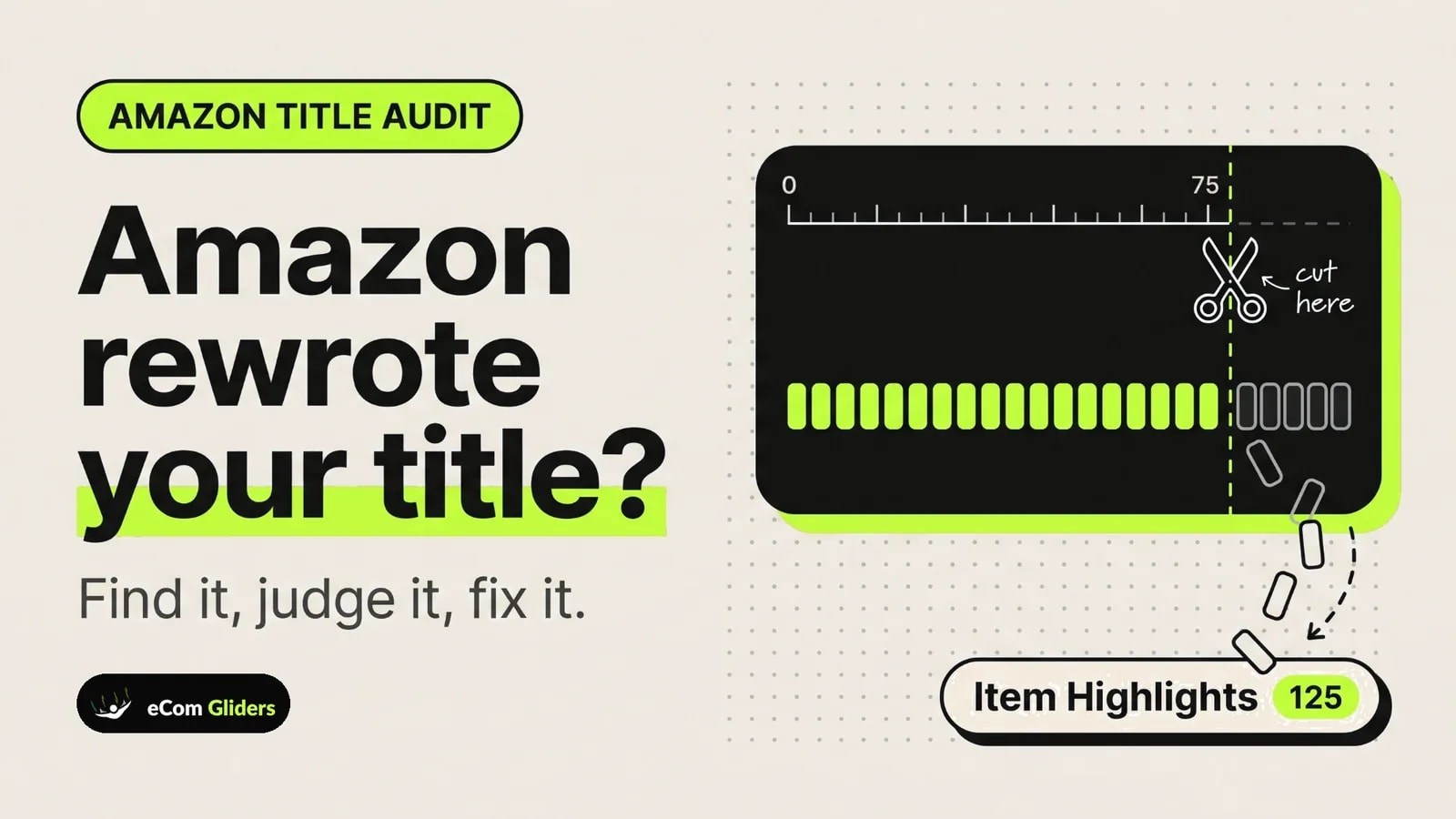
Since July 27, 2026, product titles on Amazon.com in every category except media must be 75 characters or less, including spaces, and a separate Item Highlights field gives you 125 more searchable characters. Titles still over the limit are being gradually replaced with Amazon's AI-recommended version, and the listing stays active while that happens. To see whether yours changed, open View Change History in Manage All Inventory. If you are the brand owner, also check Review Listings Changes, where you have up to 14 days to review each AI change before it is implemented.
Amazon says search and discoverability are unchanged by the new title structure. This guide covers a four-step audit (Find, Judge, Fix, Record) and the save errors sellers have reported.
What Amazon's 75-character title rule actually requires
Amazon's 75-character title limit splits what used to be one long title into two fields: an item name of up to 75 characters and an Item Highlights line of up to 125 characters. The details are in Amazon's title update announcement (Seller Central forum post), dated June 10, 2026. Amazon answered follow-up questions in a separate FAQ post on July 29, 2026.
Amazon's stated reason is that a 75-character title displays in full on mobile and stays consistent with other online stores. Media products are excluded. The change does not take listings offline: Amazon says listings stay active and you can edit your title at any time. In the July 29 FAQ, Amazon also said sellers had already updated more than 984 million product titles since the June announcement.
| Item | What Amazon says | Source |
|---|---|---|
| Title limit | 75 characters or less, including spaces, all categories except media | June 10, 2026 announcement |
| Effective date | July 27, 2026 | June 10, 2026 announcement |
| Item Highlights | Up to 125 additional characters, comma-separated phrases, fully searchable | Announcement; SP-API modular titles guide |
| Where highlights show | Beneath the item name on desktop and mobile, from August 10, 2026 | July 29, 2026 FAQ |
| Titles over the limit | Gradually replaced with Amazon's AI recommendation; listing stays active | Announcement; FAQ |
| Brand owner review | Up to 14 days to review, modify or approve each AI change in Review Listings Changes | Announcement; Amazon staff forum post |
| Bulk updates | Category Listings report, uploaded through List Your Products, typically processed within eight hours | July 29, 2026 FAQ |
| Search impact | Discoverability unchanged; item name and Item Highlights are both search inputs, neither prioritized | July 29, 2026 FAQ |
This guide covers the US marketplace (Amazon.com) only. Rules and timing in other marketplaces are not covered here.
The 4-step post-enforcement title audit
The audit has four steps: Find the affected ASINs, Judge each AI title, Fix what is wrong at the right scale, and Record what changed. Run it across your catalog now, then repeat it on a schedule. Amazon describes the replacement as gradual, and its July 29 FAQ says the changes will take place throughout 2026, so new AI changes may keep appearing.
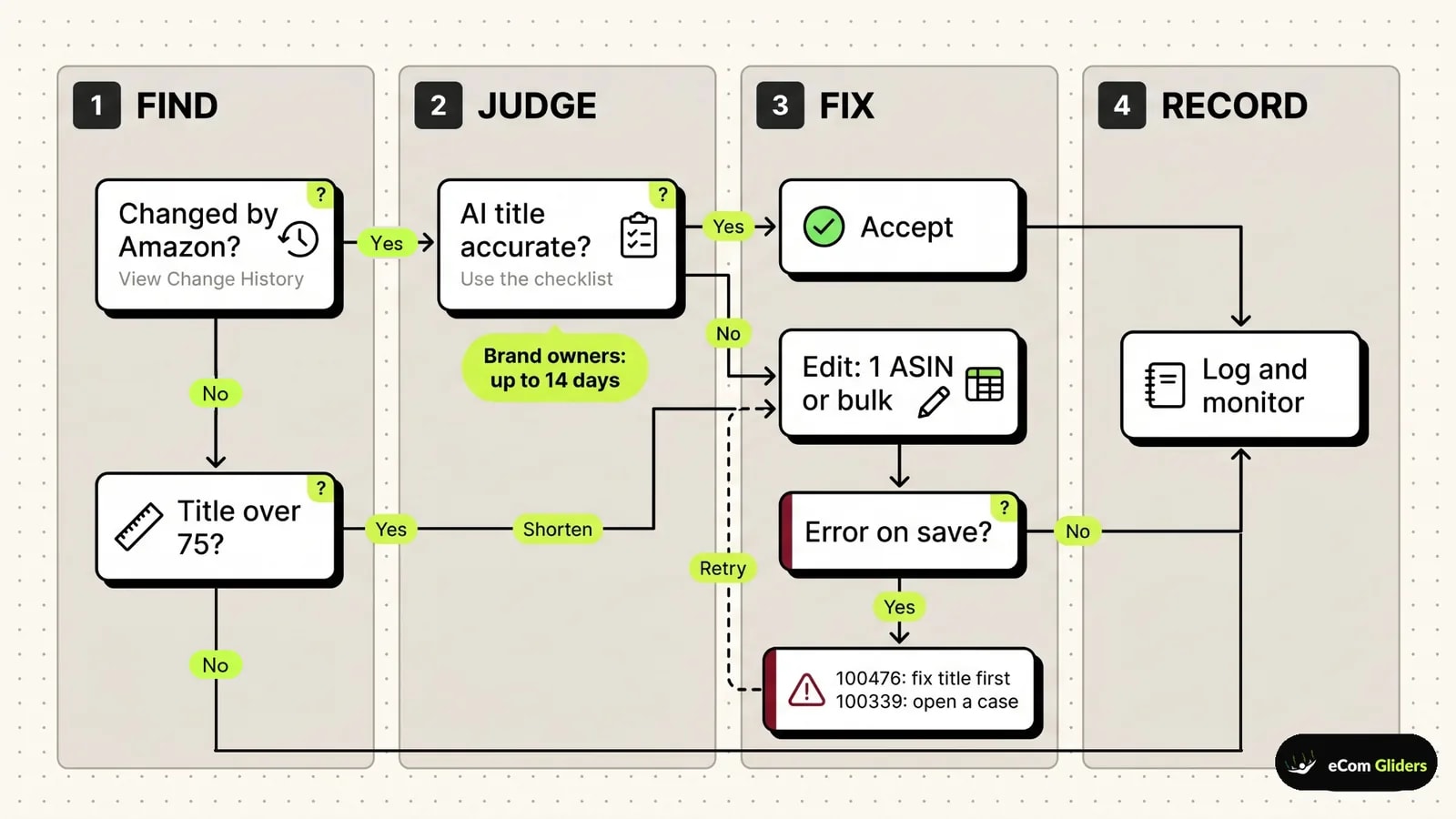
Here is the same decision path as text:
- Has Amazon already changed the title, or is a change pending? Check View Change History, and Review Listings Changes if you are the brand owner. If yes, go to step 3.
- Is the title over 75 characters, including spaces? If yes, go to step 5 and shorten it yourself. If no, go to step 8.
- Is the AI title accurate? Use the checklist in Step 2 below. Brand owners have up to 14 days to review each change.
- If it is accurate, accept it and go to step 8.
- If it is not, edit it: one ASIN in Manage All Inventory, or many ASINs through a bulk file.
- Did the save fail with an error? If no, go to step 8.
- For error 100476, shorten and save the title first. For error 100339, open a Seller Support case. Then retry step 5.
- Log the change and monitor it.
Step 1: Find which ASINs are over 75 characters or already changed
Build two lists: titles still over 75 characters that Amazon has not replaced yet, and titles Amazon has already changed. Together they show you the size of the job.
- Count title length in bulk. Download the Category Listings report, which Amazon points sellers to for title updates. In a spreadsheet, add a column with a formula such as
=LEN(A2)(adjust the cell reference to wherever the item name sits) to count characters including spaces. This is a practical shortcut, not an Amazon instruction, so confirm any title at 74 or 75 characters in Seller Central before relying on the count. - Check what Amazon already changed. In Manage All Inventory, open View Change History for the ASIN. Amazon staff have said all sellers can see AI-applied changes there.
- Check pending changes (brand owners). Open Review Listings Changes to see AI recommendations waiting for your review.
- See Amazon's suggestion for one ASIN. Go to Manage All Inventory, choose Edit, then View enhancements.
Step 2: Judge whether the AI title is acceptable
An AI title is acceptable when it keeps your brand name and key variation attributes, states product facts correctly and reads cleanly on a phone. Amazon's FAQ recommends keeping the brand name and key variating attributes in the item name and moving lesser details to Item Highlights. Size, color and count are the usual examples, though Amazon does not list them. The other checks in this table are review practice, not Amazon requirements.
| Check | Pass if | If it fails |
|---|---|---|
| Brand name | Present in the item name | Edit the title |
| Variation attributes | Size, color or count is present and correct | Edit; move lesser attributes to Item Highlights |
| Quantity and size | Match the actual product and package | Edit the title |
| Compatibility or model numbers | Correct and complete | Edit the title |
| Material or ingredients | Correct | Edit the title |
| Restricted terms | No claims your category does not allow | Edit the title |
| Variation family | Consistent with sibling ASINs | Edit in a bulk file so siblings match |
| Length | 75 characters or less, including spaces | Shorten; move details to Item Highlights |
| Readability | Makes sense on a phone screen | Edit the title |
Why check facts so closely? In 2024 Seller Central forum threads, before the 75-character rule existed, sellers reported AI title rewrites that introduced wrong details, and one thread linked a rewrite to a rise in returns. Those reports are older and anecdotal, but they show the kind of error worth catching before it reaches shoppers.
Step 3: Accept, edit or replace, at the right scale
Accept a title that passes the checklist and edit one that fails. The right editing path depends on how many ASINs you need to change.
- One or a few ASINs. In Manage All Inventory, choose Edit on the listing (or use List Your Products), correct the item name, add Item Highlights and save. Amazon says you can edit titles at any time, including after an AI replacement.
- Many ASINs. Download the Category Listings report, edit the item name and Item Highlights columns, and upload the file through List Your Products. Amazon says bulk updates are typically processed within eight hours.
- Brand owners. Act inside the 14-day window in Review Listings Changes for each pending AI change, where you can review, modify or approve it. Once the window passes, the change can go live, but you can still edit the title afterward.
Whichever path you use, shorten the item name to 75 characters or less before adding Item Highlights. Submitting highlights while the title is still too long triggers error 100476, covered in the error section below.
Step 4: Record and monitor the change
Keep a dated log for every ASIN you touch, so later performance questions can be answered with evidence instead of guesses. This is working practice, not an Amazon requirement.
Useful log columns are the ASIN, the original title, the AI title (if any), the final title, the Item Highlights text, the date of the change and who made it (you or Amazon). After the change, compare sessions and unit session percentage in Business Reports over matching periods, and check your advertising search term reports to see whether ads still match relevant searches. Allow for seasonality, price changes and stock gaps before you draw any conclusion.
If this audit turns up more changed titles than your team can review inside the 14-day window, or AI titles with wrong product facts, you can book a free Amazon account audit. We will review the affected listings with you and point out what to fix first.
How to write Item Highlights that hold displaced keywords
Item Highlights is a separate field of up to 125 characters, written as short comma-separated phrases, that holds the details your shorter title no longer fits. In Amazon's Selling Partner API it is the title_differentiation attribute, next to item_name for the title. Amazon describes highlights as fully searchable, and from August 10, 2026, they display beneath the item name on desktop and mobile. One rule comes first: the item name must already be 75 characters or less, or the highlights will not save.
A simple way to decide where each element goes:
- Item name: brand, product type and the variation attributes a shopper uses to pick the right option, such as size, color or count. Keeping brand and variating attributes here follows Amazon's FAQ recommendation; the examples are ours.
- Item Highlights: secondary features and use cases, as short phrases.
- Bullet points: details that need a full sentence to explain.
- Backend search terms: other relevant terms that do not fit naturally in visible copy.
If you are unsure where a term belongs, ask whether a shopper needs it to choose the right variant. If yes, it belongs in the item name.
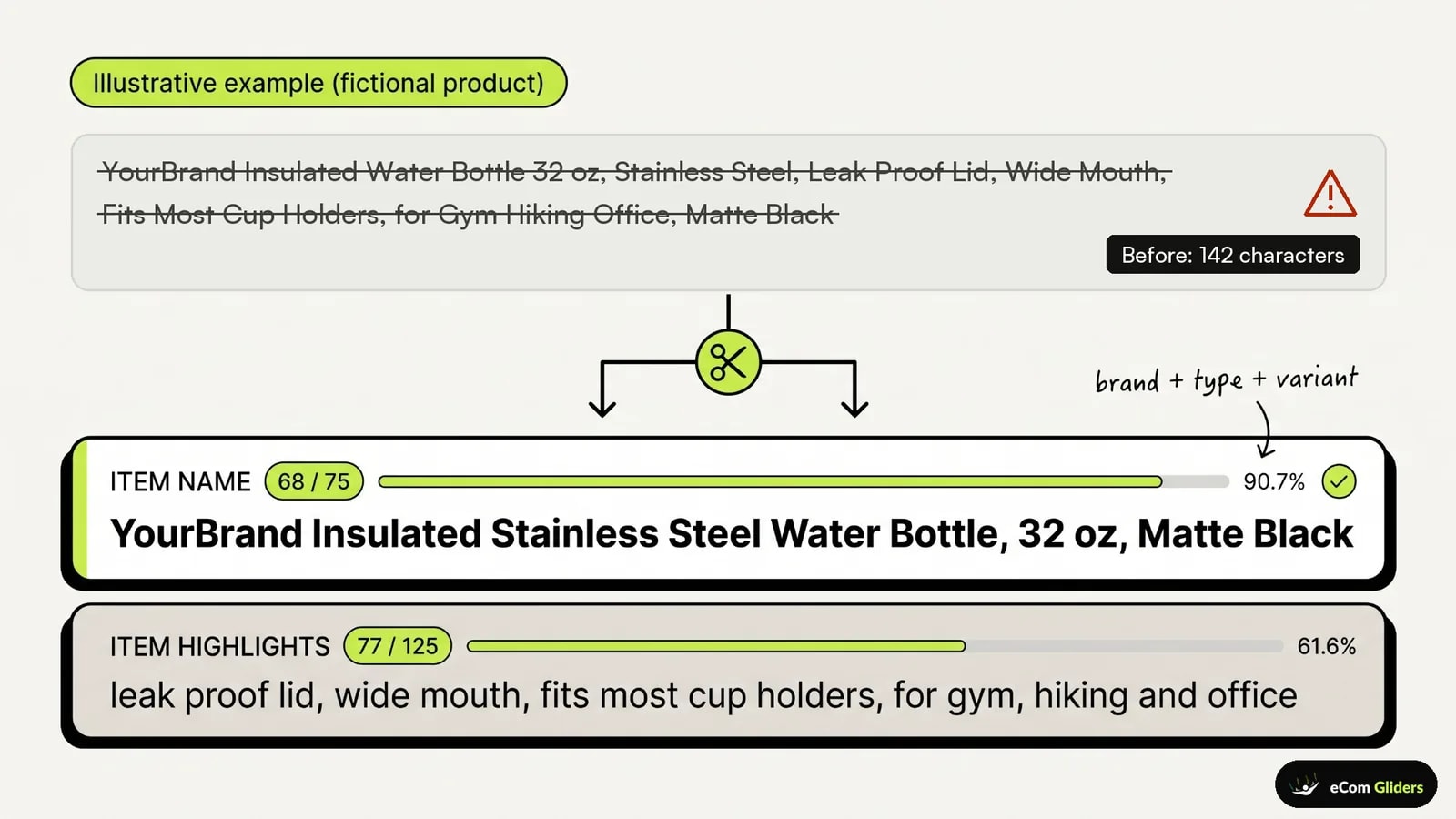
Illustrative example (fictional product). The brand and product below are invented. Character counts include spaces and were checked with a script.
- Before, legacy title (142 characters):
YourBrand Insulated Water Bottle 32 oz, Stainless Steel, Leak Proof Lid, Wide Mouth, Fits Most Cup Holders, for Gym Hiking Office, Matte Black - After, item name (68 characters):
YourBrand Insulated Stainless Steel Water Bottle, 32 oz, Matte Black - After, Item Highlights (77 characters):
leak proof lid, wide mouth, fits most cup holders, for gym, hiking and office
Brand, product type, size and color stay in the item name. The lid, mouth, cup holder fit and use cases move to Item Highlights as plain phrases. The example shows structure only. It says nothing about how a listing written this way would perform.
When you write your own, use phrases a shopper would actually search for or scan, keep each phrase short, and skip near-duplicates of words already in the title.
Fixing the errors sellers report: 100476, 100339 and failed saves
According to Amazon's developer documentation, error 100476 means Item Highlights were submitted while the item name was over 75 characters, so shorten and save the title first. It is the only error here that Amazon documents: Amazon's SP-API guide to modular titles gives the message as "Provide an Item Name that is 75 characters or less to use Item Highlights." Error 100339 and the other save problems below come from seller reports in the Seller Central forums, and Amazon has not published a fix for them.
| Error or symptom | What it means | Evidence | What to try |
|---|---|---|---|
| 100476 | Item Highlights submitted while the item name is over 75 characters | Documented in Amazon's SP-API guide | Shorten and save the item name first, then add highlights. In a bulk file, fix both columns in the same upload and recheck the title count |
| 100476 or "currently unsupported" on titles already under 75 characters | Highlights not accepted for some listings, especially around launch | Seller-reported in June 2026; acknowledged by Amazon staff | Recheck the title length and retry later. If it persists, open a Seller Support case with the ASIN and error text |
| 100339 | A hidden or legacy field blocks edits, including title updates (reported on reclassified older Handmade listings) | Seller-reported in August 2026; Amazon staff replied. Meaning may vary by context | Stop resubmitting. Open a case citing the error and ASIN, and ask Support to identify the blocking attribute |
| Title change reverts or does not stick | Unknown; possibly an AI replacement after your edit, or processing lag | Anecdotal | Check View Change History to see who changed it, allow time for bulk processing, then log and escalate |
When you open a Seller Support case, include the ASIN, the exact error code and message, the date and a screenshot of the failed save. That gives Support what it needs to trace the issue, though it does not guarantee a quick fix. For upload failures caused by something other than the title rule, our guide to flat-file and variation listing errors covers the wider set.
Will a shorter title hurt your ranking or ads?
Amazon says a shorter title should not change your search visibility. In its July 29, 2026 FAQ post, Amazon wrote, "Your search and discoverability are unchanged." The same post says the item name and Item Highlights are both used as search inputs and neither is prioritized over the other.
Some sellers have posted in the Seller Central forums that sales, traffic or advertising return fell around the time their titles changed. These are individual reports. They do not show that the title caused the drop, and they do not account for season, price, stock or competition.
Check the data instead of guessing. Use the change log from Step 4 to line up the date of each title change with your Business Reports and search term reports. If a drop started before the change, or also hit listings whose titles did not change, the title is a less likely explanation. For a structured way to work through other causes, see how to diagnose a sudden organic rank drop.
Open questions Amazon has not answered
As of November 13, 2026, Amazon's public posts do not address:
- Whether sellers who are not the brand owner get any review window before an AI title goes live.
- Who controls the title on a listing shared by several sellers.
- Whether category style guides that allowed longer titles will be updated to match the 75-character limit.
- Whether every bulk template supports Item Highlights.
If Amazon publishes answers, recheck your audit against them.
Next steps
Start by counting how many titles are still over 75 characters and how many Amazon has already changed (Step 1). Those two numbers tell you whether this is a few quick edits or a catalog project. If you would rather hand off title rewrites, Item Highlights and keyword placement, see our Amazon listing optimization service. For a wider review of bullets, images and A+ content once titles are fixed, read the full listing optimization checklist.
About the author
Mary
Content Specialist
Mary writes practical Amazon seller guides covering PPC, SEO, listing optimization, and account management.
Keep reading


